IoT Traffic Controller Light
An ESP32 traffic-light system with a crosswalk, an LCD and a remote emergency light, built in five stages.
Overview
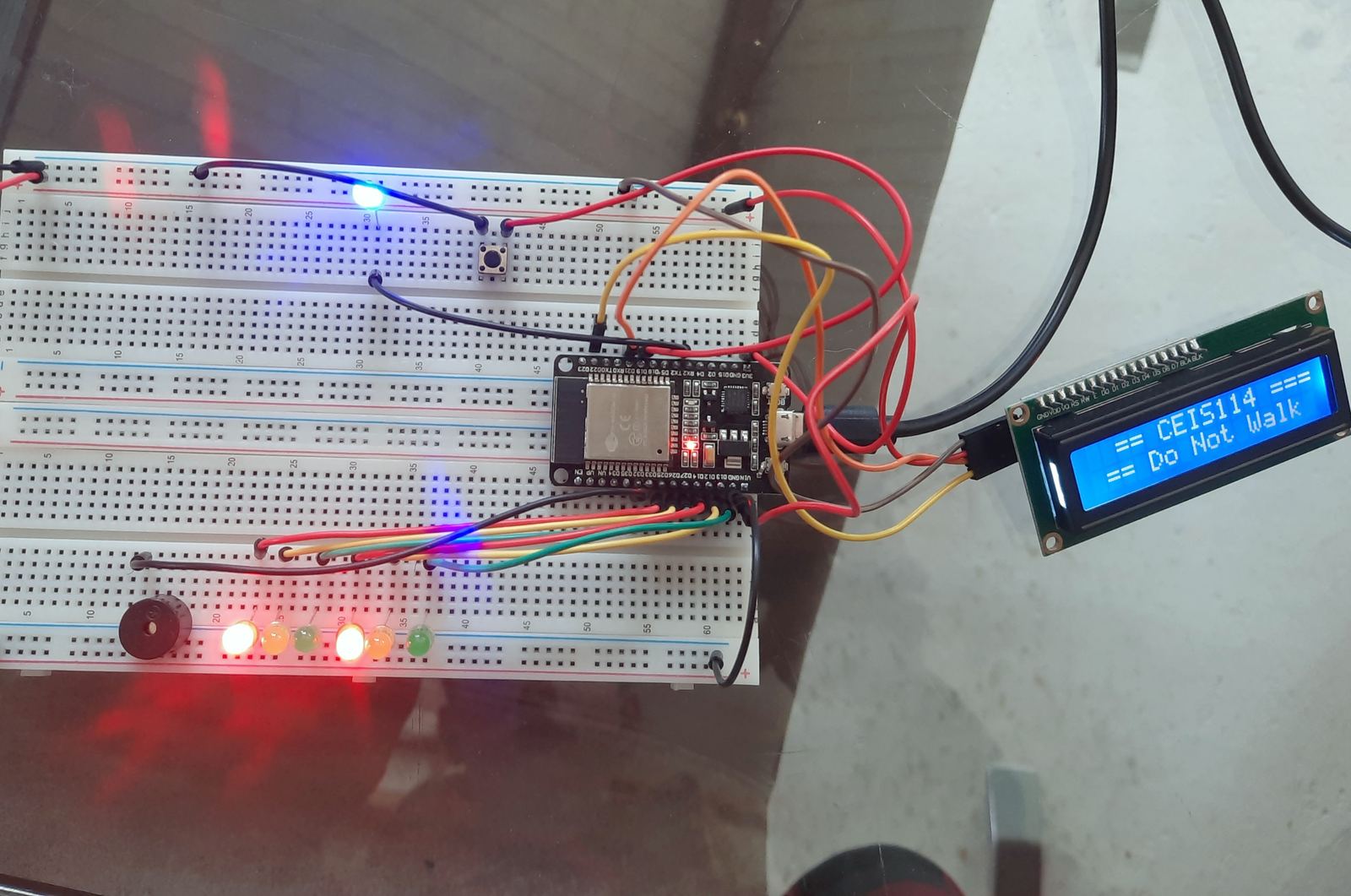
I built a traffic-light controller on an ESP32 and added to it one stage at a time. It started as a single red, yellow and green light. Then I added a second set of lights for a crossing street, a crosswalk button with a countdown, an LCD and buzzer for pedestrians, and finally a blue emergency light I could switch on remotely over Wi-Fi through the Cayenne MQTT dashboard.
How I built it
Five stages, one board. Each stage adds one feature to the last, with its photos and the setup code.
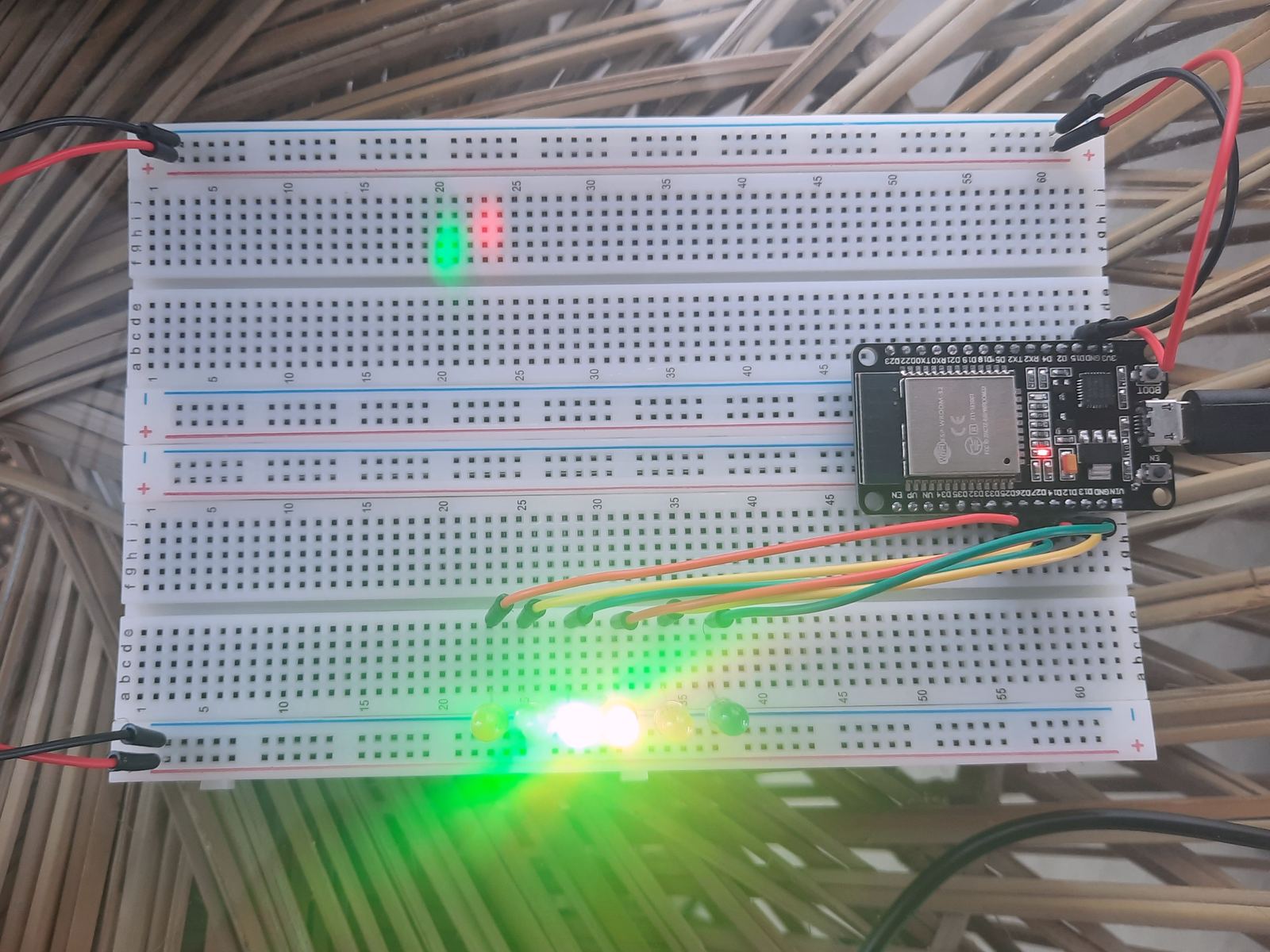
One traffic light.
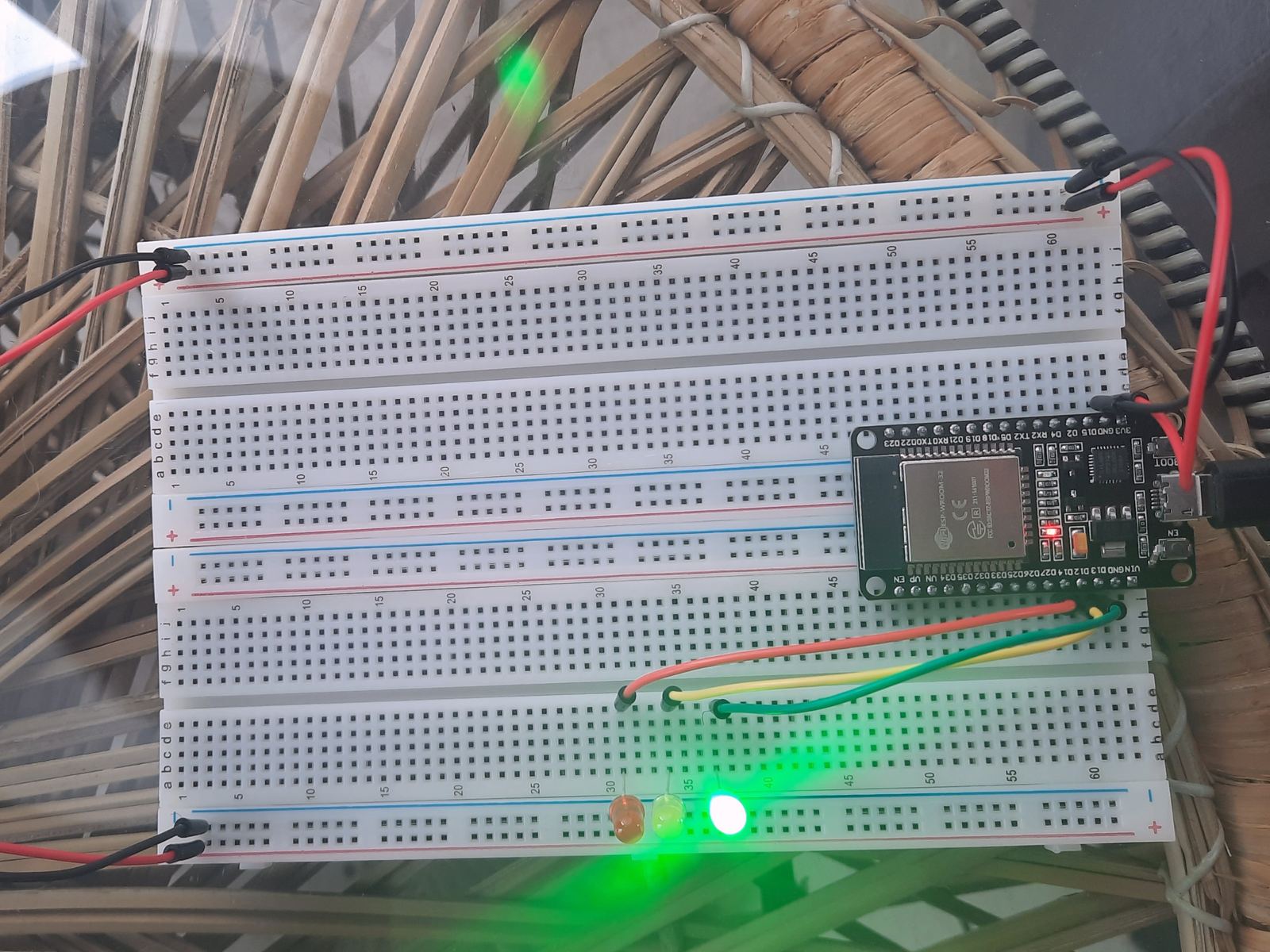
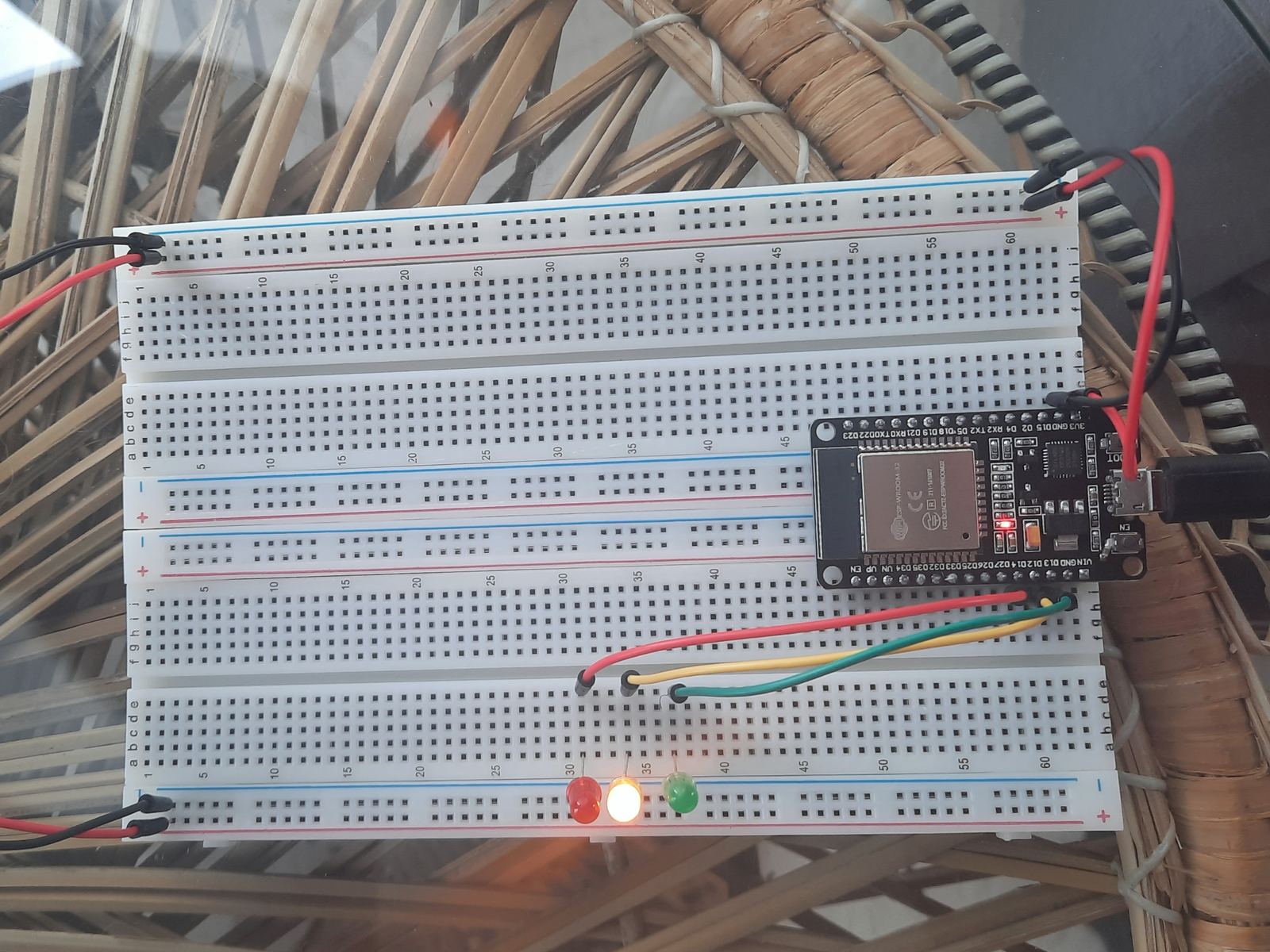
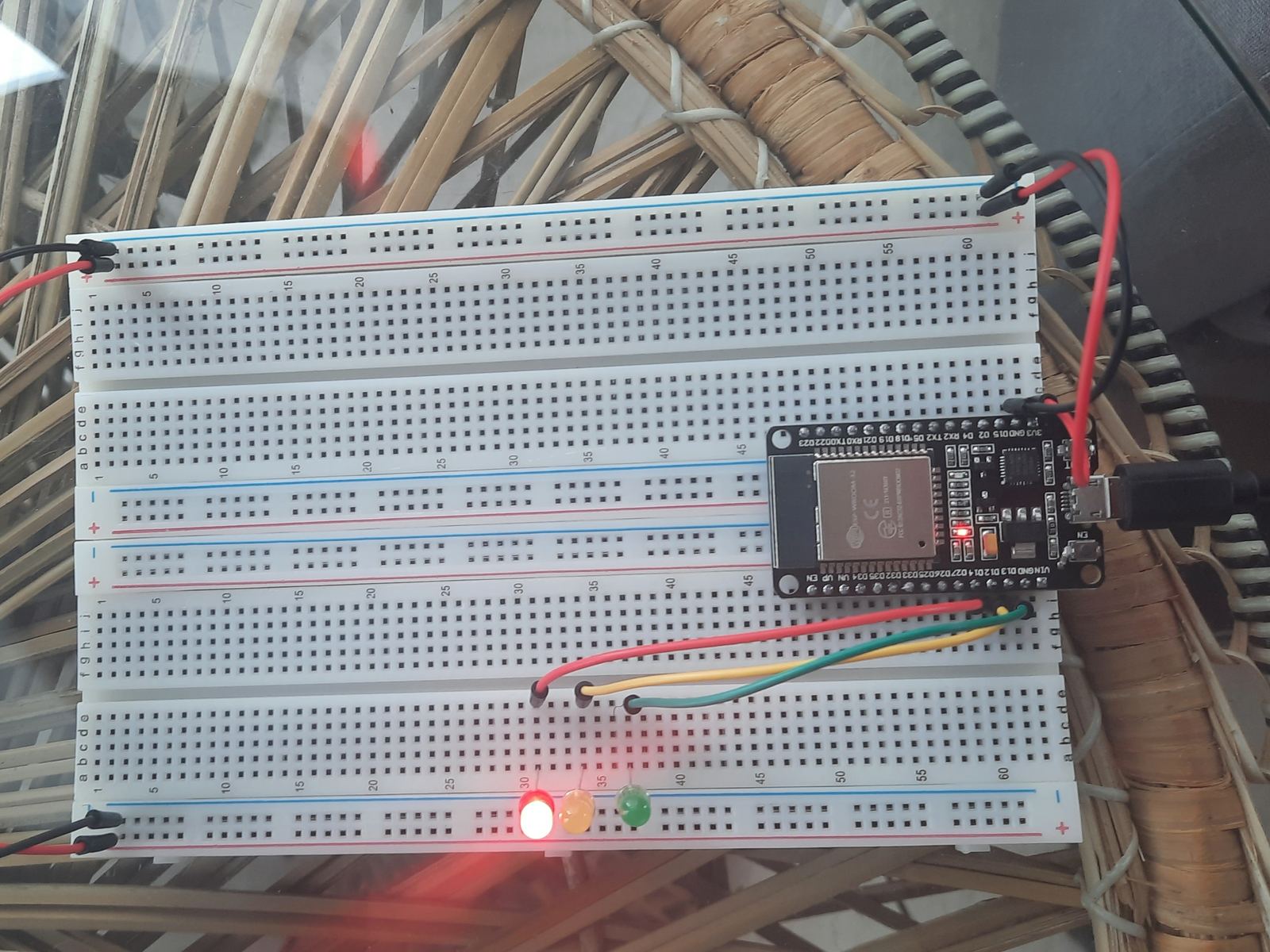
I wired a red, yellow and green LED to GPIO 14, 12 and 13 and wrote a sketch that cycles them, with a two-second delay between changes.
// Module 3: one traffic light
const int red_LED1 = 14;
const int yellow_LED1 = 12;
const int green_LED1 = 13;

void setup() {
  pinMode(red_LED1, OUTPUT);
  pinMode(yellow_LED1, OUTPUT);
  pinMode(green_LED1, OUTPUT);
}
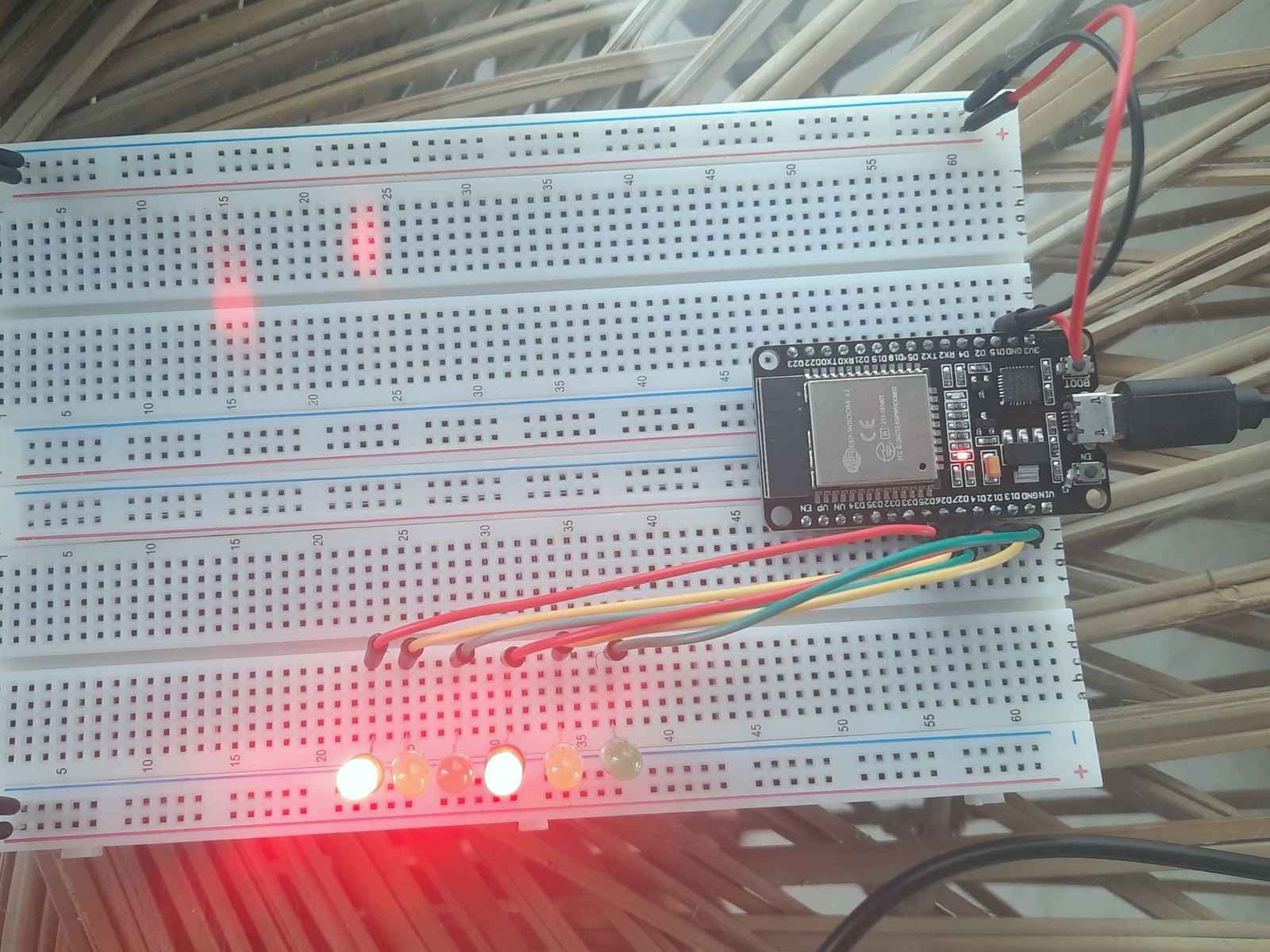
Two lights at an intersection.
I added a second set of LEDs on GPIO 25, 26 and 27 so the two directions take turns.
const int red_LED2 = 25;
const int yellow_LED2 = 26;
const int green_LED2 = 27;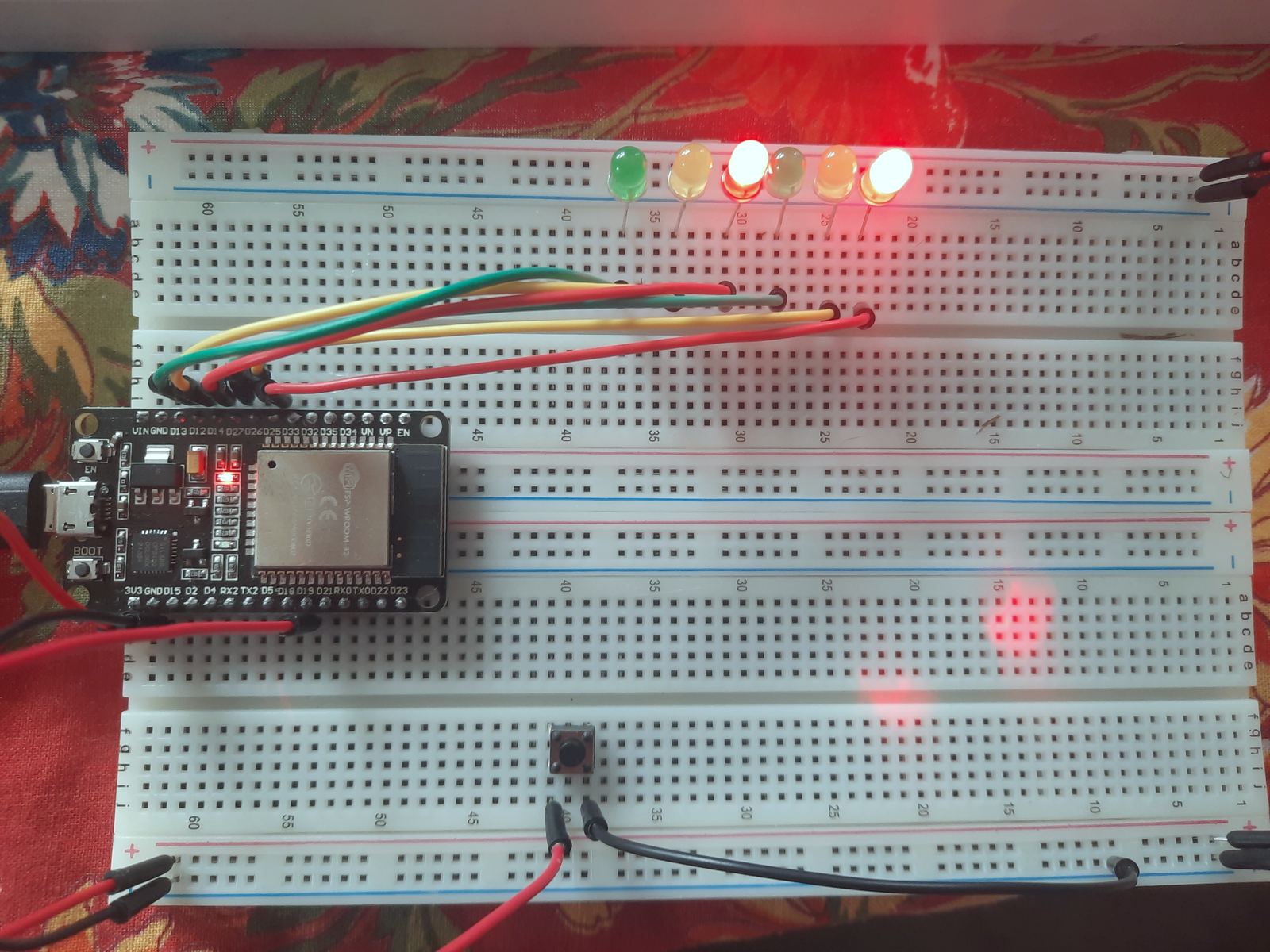
Crosswalk button.
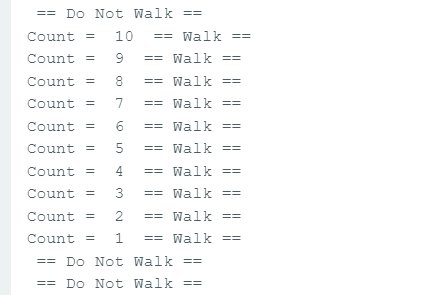
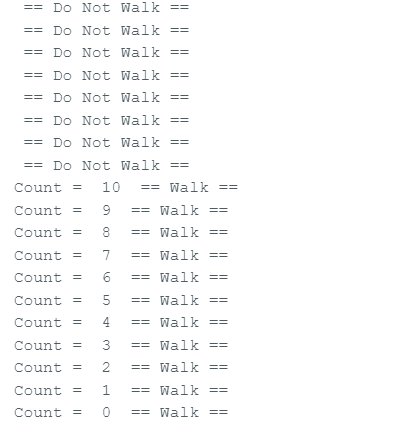
I added a push button on GPIO 19. Pressing it starts a pedestrian cycle: the Serial Monitor shows "Do Not Walk", counts down from 10, then shows "Walk".
int Xw_value;
const int Xw_button = 19; // crosswalk button

// in setup():
pinMode(Xw_button, INPUT_PULLUP); // 0 = pressed, 1 = not pressed
Serial.begin(115200);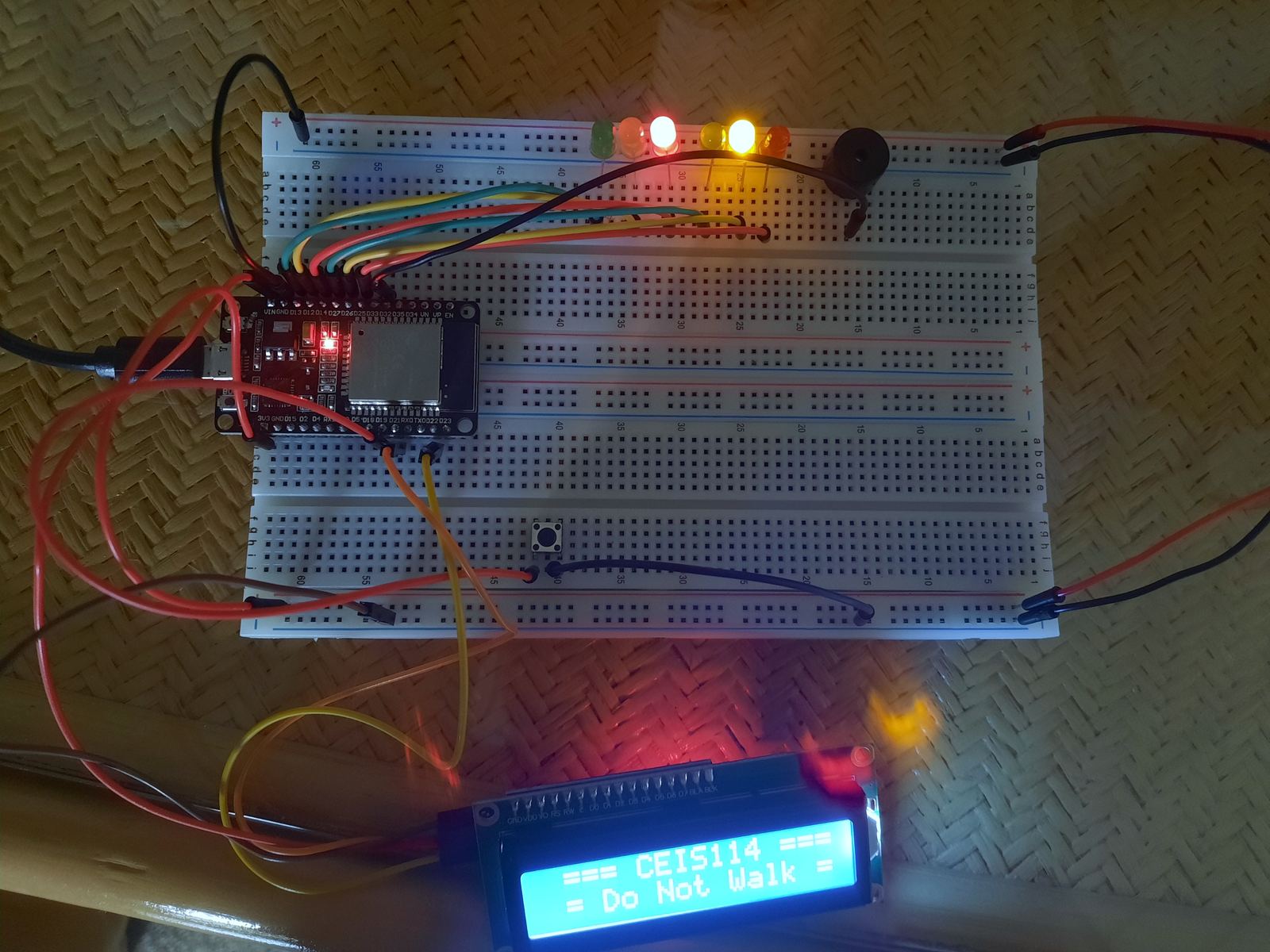
LCD and buzzer.
I connected a 16x2 LCD over I2C (address 0x27) and a buzzer on GPIO 32. The LCD shows "CEIS114" on the top line and the walk status on the bottom line.
#include <Wire.h>
#include <LiquidCrystal_I2C.h>

LiquidCrystal_I2C lcd(0x27, 16, 2); // 16x2 LCD at I2C address 0x27
const int bzr = 32;                 // buzzer

// in setup():
lcd.init();
lcd.backlight();
lcd.setCursor(0, 0);Emergency light over Wi-Fi.
I added a blue LED on GPIO 16 and connected the ESP32 to the Cayenne IoT platform over MQTT, so I could switch the emergency light on remotely from the Cayenne dashboard. The Serial Monitor confirms the board joins Wi-Fi and then connects to the Cayenne MQTT broker.
#define CAYENNE_PRINT Serial
#include <CayenneMQTTESP32.h>

// Wi-Fi and Cayenne credentials are set here and are not published.

int ONOFF;
const int LED0 = 16; // GPIO16 drives the emergency lightBefore the first stage
Gathered the parts.
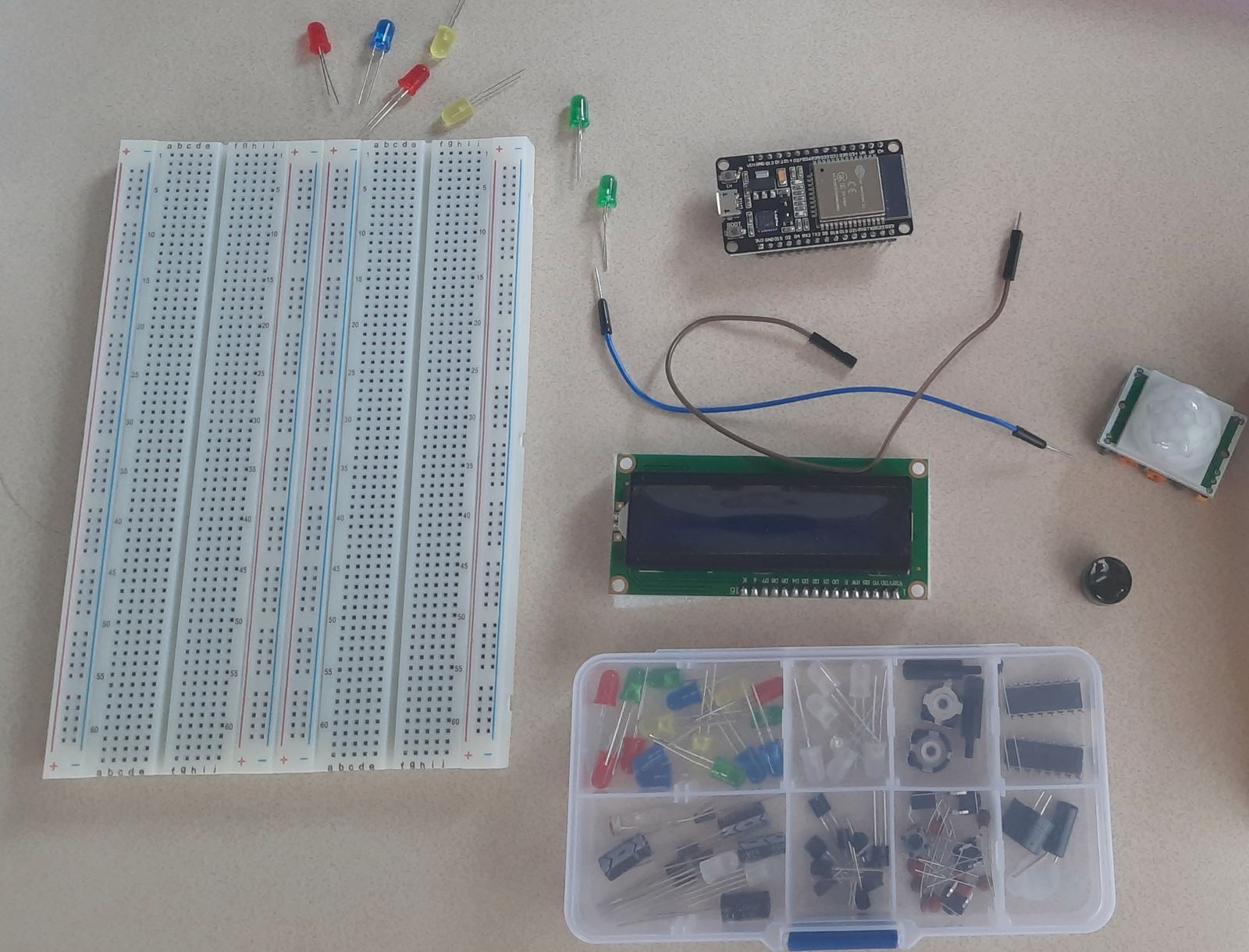
The final build uses an ESP32 board, red, yellow, green and blue LEDs, 220-ohm resistors, a push button, a 16x2 LCD with an I2C adapter, an active buzzer, wires and breadboards.
Set up the board.
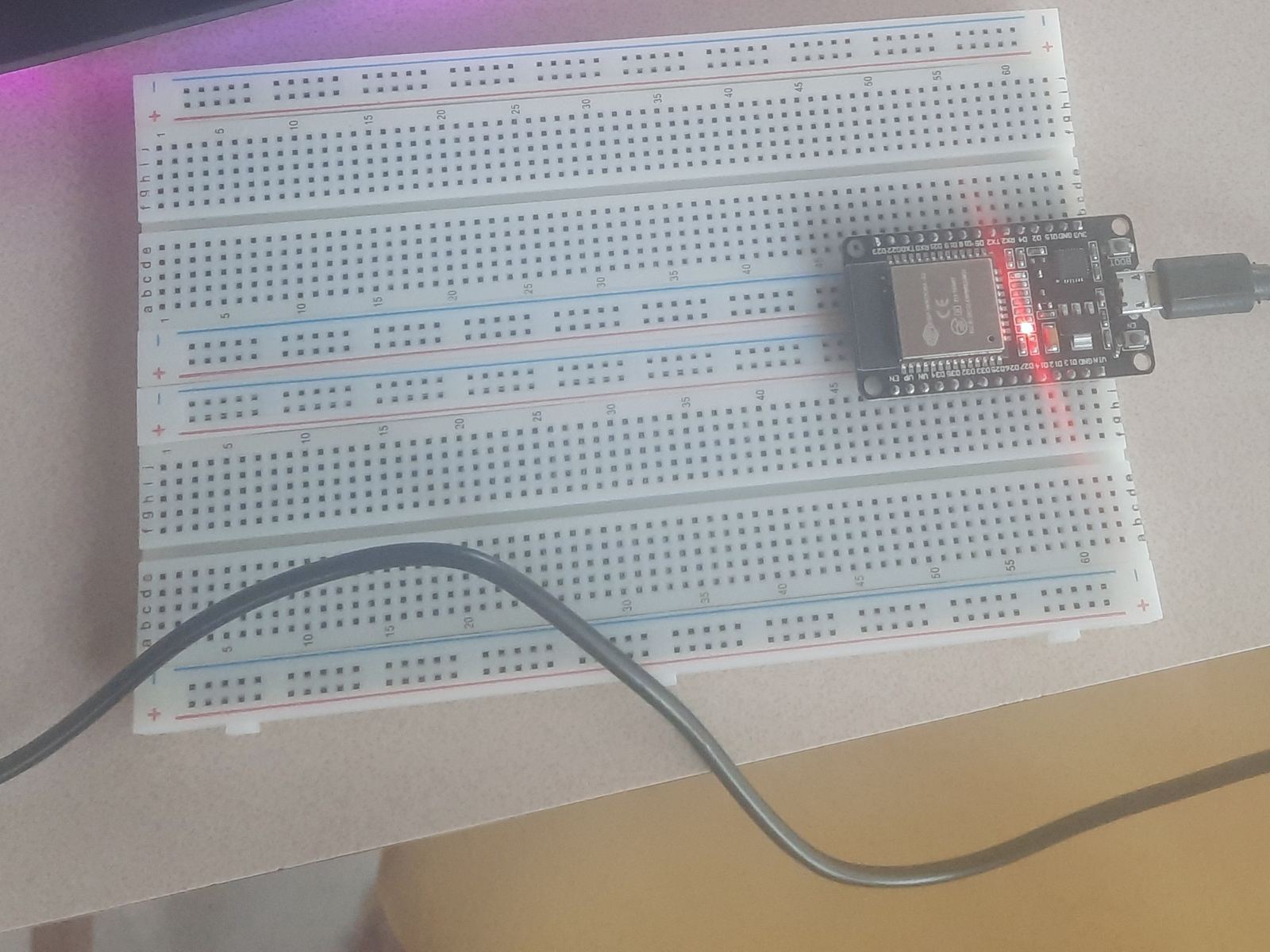
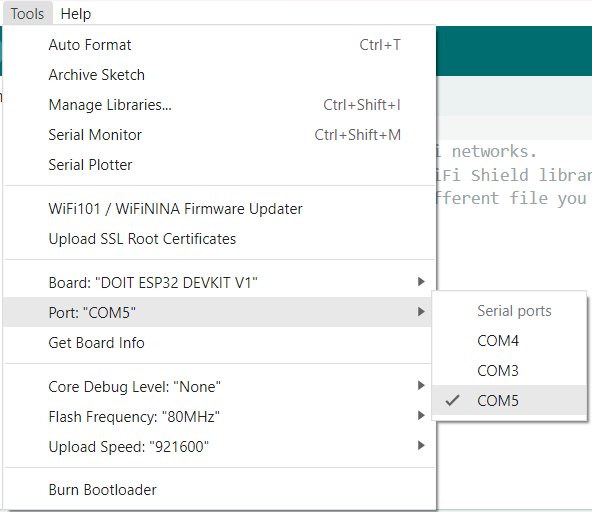
I mounted the ESP32 on a breadboard, powered it over USB, and installed Arduino IDE 2 with the board set to DOIT ESP32 DEVKIT V1. A Wi-Fi scan sketch confirmed the board could see nearby networks.
These are the setup sections of each stage's sketch.
Photos from the build (3)
Challenges and what I learned
Challenges
- At first my computer wouldn't recognize the board.Updating my USB drivers fixed it.
- The board wouldn't connect to my Wi-Fi.Security settings on my router were blocking it.
What I learned
I learned to design and build breadboard circuits, write and upload C++ sketches in the Arduino IDE, install libraries, and troubleshoot and test a circuit when it doesn't behave. I also got a working grasp of basic electronics and of how IoT devices talk to cloud services. Building one stage at a time meant every new feature started from something that already worked.