← All projects

Introduction to Cloud Computing

Virtual machines, networking, storage and monitoring in Microsoft Azure.

Virtual network: NETW211-VNet-FZ

I created a virtual network with two /24 subnets, 10.0.0.0/24 and 10.0.1.0/24, and deployed one VM in each (10.0.0.4 and 10.0.1.4). A /24 has 254 usable host addresses, but Azure shows 251 available because it reserves some addresses for its own services.

Back to the map

Subnet0: 10.0.0.0/24

The first subnet holds Subnet0-VM at 10.0.0.4. Azure shows 251 of its addresses as available; the rest are reserved for Azure's own services.

Back to the map

Subnet0-VM: 10.0.0.4

Over Remote Desktop I ran ipconfig to confirm the VM's private address and gateway, and pinged its address. This checks the VM's own addressing, not a connection between the two VMs.

Screenshot (1)
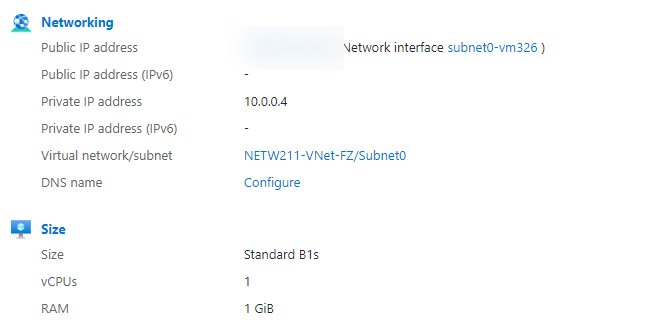
Azure portal overview of Subnet0-VM showing private IP address 10.0.0.4 in Subnet0, with identifiers blurred. (open larger image)
The VM in the first subnet, with private address 10.0.0.4.
C:\Users\myaccount>ipconfig

Windows IP Configuration


Ethernet adapter Ethernet:

   Connection-specific DNS Suffix  . : [hidden]
   Link-local IPv6 Address . . . . . : [hidden]
   IPv4 Address. . . . . . . . . . . : 10.0.0.4
   Subnet Mask . . . . . . . . . . . : 255.255.255.0
   Default Gateway . . . . . . . . . : 10.0.0.1

C:\Users\myaccount>ping 10.0.0.4

Pinging 10.0.0.4 with 32 bytes of data:
Reply from 10.0.0.4: bytes=32 time<1ms TTL=128

Ping statistics for 10.0.0.4:
    Packets: Sent = 4, Received = 4, Lost = 0 (0% loss),
Approximate round trip times in milli-seconds:
    Minimum = 0ms, Maximum = 0ms, Average = 0ms

Back to the map

Subnet1: 10.0.1.0/24

The second subnet holds Subnet1-VM at 10.0.1.4. Azure shows 251 of its addresses as available; the rest are reserved for Azure's own services.

Back to the map

Subnet1-VM: 10.0.1.4

The same check on the second VM: ipconfig for its address and gateway, then a ping to its own address.

Screenshot (1)
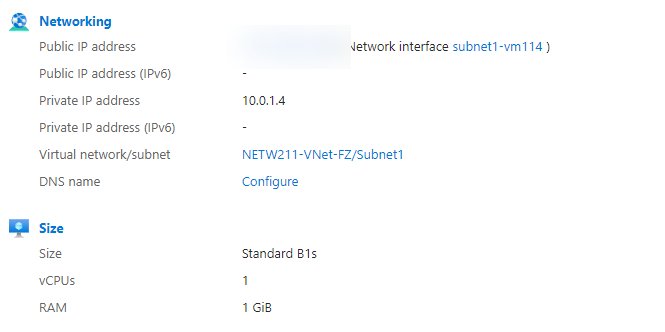
Azure portal overview of Subnet1-VM showing private IP address 10.0.1.4, with identifiers blurred. (open larger image)
The VM in the second subnet, with private address 10.0.1.4.
C:\Users\myaccount>ipconfig

Windows IP Configuration


Ethernet adapter Ethernet:

   Connection-specific DNS Suffix  . : [hidden]
   Link-local IPv6 Address . . . . . : [hidden]
   IPv4 Address. . . . . . . . . . . : 10.0.1.4
   Subnet Mask . . . . . . . . . . . : 255.255.255.0
   Default Gateway . . . . . . . . . : 10.0.1.1

C:\Users\myaccount>ping 10.0.1.4

Pinging 10.0.1.4 with 32 bytes of data:
Reply from 10.0.1.4: bytes=32 time<1ms TTL=128

Ping statistics for 10.0.1.4:
    Packets: Sent = 4, Received = 4, Lost = 0 (0% loss),
Approximate round trip times in milli-seconds:
    Minimum = 0ms, Maximum = 0ms, Average = 0ms

Back to the map

First VM: NETW211VM

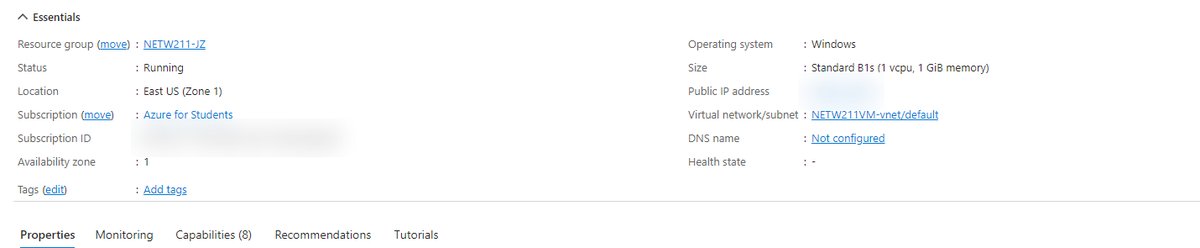
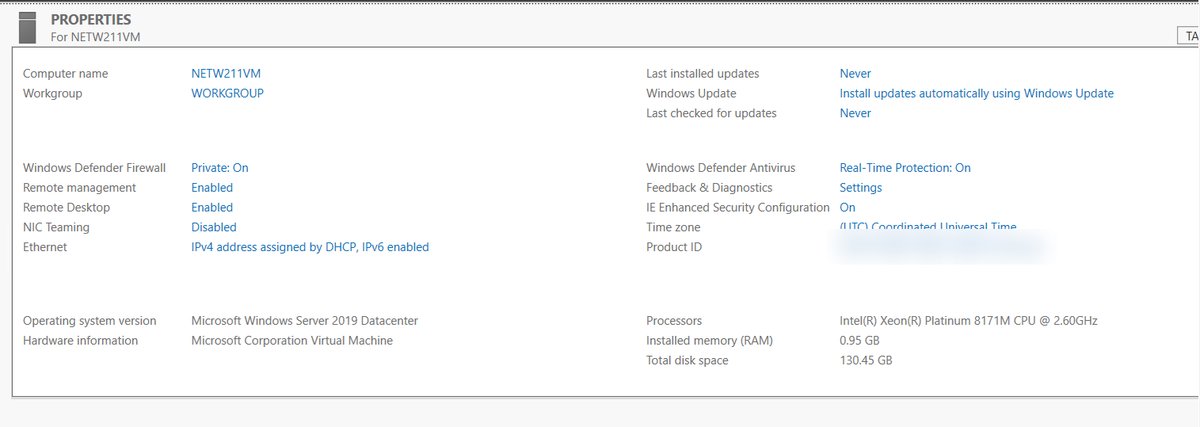
I created a Windows Server 2019 VM (size Standard B1s, East US), connected to it over Remote Desktop and checked its system properties in Server Manager. Then I deleted its resource group to clean up.

Screenshots (2)
Azure portal overview for a Windows virtual machine named NETW211VM, showing its size, region and networking details, with identifiers blurred. (open larger image)
My first Azure VM: Windows Server 2019, size B1s, in East US.
Windows Server Manager properties panel for NETW211VM showing Windows Server 2019 Datacenter and about 1 GB of memory. (open larger image)
The VM's properties in Server Manager over Remote Desktop.

Back to the map

My PC

After adding the AllowPing rule, pinging the VM from my own PC got 4 of 4 replies, averaging 23 ms.

C:\Users\...>ping [VM public IP]

Pinging [VM public IP] with 32 bytes of data:
Reply from [VM public IP]: bytes=32 time=21ms TTL=48
Reply from [VM public IP]: bytes=32 time=26ms TTL=48
Reply from [VM public IP]: bytes=32 time=23ms TTL=48
Reply from [VM public IP]: bytes=32 time=22ms TTL=48

Ping statistics for [VM public IP]:
    Packets: Sent = 4, Received = 4, Lost = 0 (0% loss),
Approximate round trip times in milli-seconds:
    Minimum = 21ms, Maximum = 26ms, Average = 23ms

Back to the map

Network security group: AllowPing

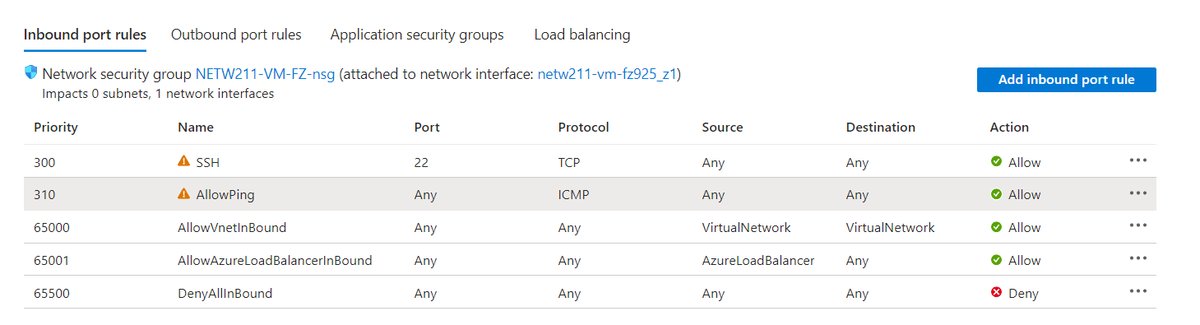
I added a network security group rule, AllowPing (priority 310, ICMP), next to the existing SSH rule (priority 300, TCP port 22).

Screenshot (1)
Azure network security group inbound rules table listing SSH at priority 300, AllowPing at priority 310 and the default rules. (open larger image)
The inbound rules on my Linux VM: SSH on port 22 and the AllowPing rule I added for ICMP.

Back to the map

Ubuntu VM: NETW211-VM-FZ

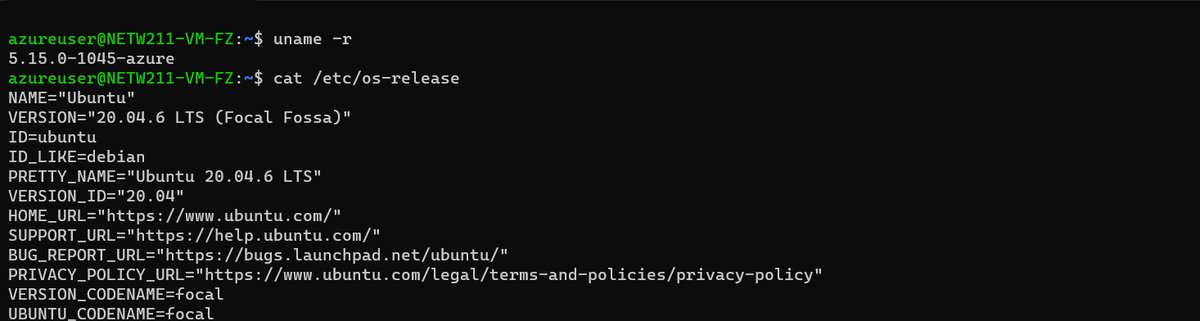
I launched an Ubuntu 20.04 VM and connected over SSH to check the kernel version, OS release, network interfaces and outbound connectivity.

Screenshot (1)
Terminal SSH session on an Ubuntu VM running uname -r and cat /etc/os-release. (open larger image)
Checking the Ubuntu VM over SSH.
azureuser@NETW211-VM-FZ:~$ uname -r
5.15.0-1045-azure
azureuser@NETW211-VM-FZ:~$ cat /etc/os-release
NAME="Ubuntu"
VERSION="20.04.6 LTS (Focal Fossa)"
PRETTY_NAME="Ubuntu 20.04.6 LTS"
...
azureuser@NETW211-VM-FZ:~$ ping -c 4 www.facebook.com
...
3 packets transmitted, 3 received, 0% packet loss, time 2003ms
rtt min/avg/max/mdev = 16.331/16.601/17.065/0.329 ms
azureuser@NETW211-VM-FZ:~$ ip addr
...
2: eth0: <BROADCAST,MULTICAST,UP,LOWER_UP> mtu 1500 qdisc mq state UP group default qlen 1000
    inet 10.0.0.4/24 brd 10.0.0.255 scope global eth0
...

Back to the map

Alert rules: VM-Restart and VM-Deallocate

Two activity-log alert rules on the Linux VM: one for a restart and one for a deallocation.

Screenshot (1)
Azure Monitor alert rules list showing VM-Deallocate and VM-Restart targeting the VM NETW211-VM-FZ. (open larger image)
The two alert rules: one for a restart, one for a deallocation.

Back to the map

Action group: VM-Status-Change

An action group that sends an email when either alert fires.

Screenshot (1)
Azure Monitor action groups list showing VM-Status-Change, short name VMStatus, with one email action, enabled. (open larger image)
The action group that sends the alert email.

Back to the map

Blob storage

I uploaded an image to Blob storage and opened it by its URL. I took a snapshot of a text blob, then turned on versioning and saved a revised copy, so both the original and the revision were kept.

Storage tiers, in my words

Back to the map

Course
NETW211, DeVry University
Tools
Microsoft Azure, Windows Server 2019, Ubuntu 20.04, Remote Desktop, SSH, network security groups, Blob storage, Azure Monitor
Timeframe
Sep – Oct 2023

Overview

I worked through the core pieces of Microsoft Azure across the course modules. I deployed Windows and Linux virtual machines, built a virtual network with two subnets, opened a firewall rule so I could ping a VM from my local PC, stored and versioned files in Blob storage, and set up alerts that email me when a VM restarts or shuts down.

How I built it

  1. Deployed a virtual machine.

    I created a Windows Server 2019 VM (size Standard B1s, East US), connected to it over Remote Desktop and checked its system properties in Server Manager. Then I deleted its resource group to clean up.

    Photos (2)
  2. Built a virtual network with two subnets.

    I created a virtual network with two /24 subnets, 10.0.0.0/24 and 10.0.1.0/24, and deployed one VM in each (10.0.0.4 and 10.0.1.4). A /24 has 254 usable host addresses, but Azure shows 251 available because it reserves some addresses for its own services. Over Remote Desktop I ran ipconfig on each VM to confirm its private address and gateway, and pinged its address.

    Photos (2)
  3. Secured a Linux VM.

    I launched an Ubuntu 20.04 VM and connected over SSH to check the kernel version, OS release, network interfaces and outbound connectivity. Then I added a network security group rule, AllowPing (priority 310, ICMP), next to the existing SSH rule (priority 300, TCP port 22). Pinging the VM from my own PC got 4 of 4 replies, averaging 23 ms.

    Photos (2)
  4. Stored and versioned files.

    I uploaded an image to Blob storage and opened it by its URL. I took a snapshot of a text blob, then turned on versioning and saved a revised copy, so both the original and the revision were kept.

  5. Set up monitoring.

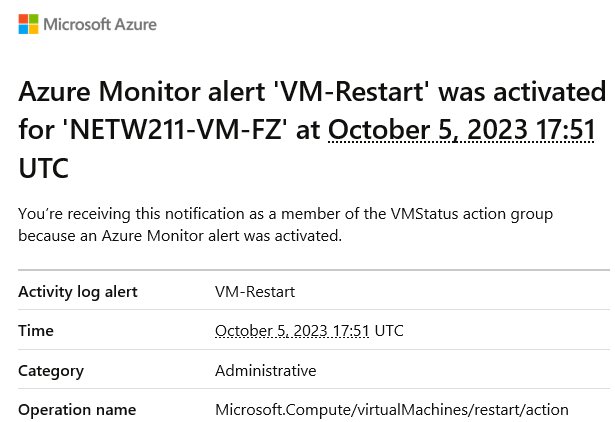
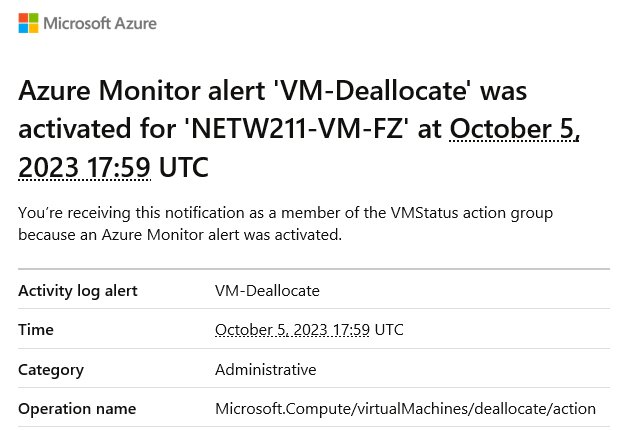
    I created an action group that sends an email, and two activity-log alert rules on the Linux VM: one for a restart and one for a deallocation. I restarted and stopped the VM, and both alert emails arrived on October 5, 2023.

    Photos (4)
Code: the checks I ran

The checks I ran on the Ubuntu VM over SSH:

uname -r            # 5.15.0-1045-azure
cat /etc/os-release
ping -c 4 www.facebook.com
ip addr

And on each Windows VM over Remote Desktop, checking the VM's own address rather than a connection between the two VMs:

ipconfig
ping 10.0.0.4

Storage tiers, in my words

Hot

Hot storage is for data that's used constantly. It's quick to access but costs more.

Access
Constant, quick
Cost
Higher

Cool

Cool storage is for data you access less often. It takes longer to get to but is much cheaper.

Access
Less often, slower
Cost
Much cheaper than hot

Archive

Archive storage is for long-term keeping: things you rarely need to touch.

Access
Rarely
Use
Long-term keeping

Challenges and what I learned

Challenges

  • During the final project the email wasn't working.I had to restart the VM and servers to get it to load properly.
  • Multi-factor authentication kept issuing new codes,and sometimes it wouldn't accept the one I was entering.

What I learned

I learned how to deploy and manage virtual machines in Azure, how virtualization works in practice, and a lot more about networking: subnets, reserved addresses, and how firewall rules decide what traffic gets through. When something didn't work, like the alert emails, I had to work out where the problem was and fix it. The course also named cloud service models among its skills, though the labs here show virtualization, networking and security.
Next project: Smart Home Automation System →

A personal project on a Raspberry Pi with sensors, programmed in Python. Details coming.